Intune enrollment:
follow the chain.
A practical, evidence-driven workflow for moving from “enrollment failed” to the first broken stage in the management chain.
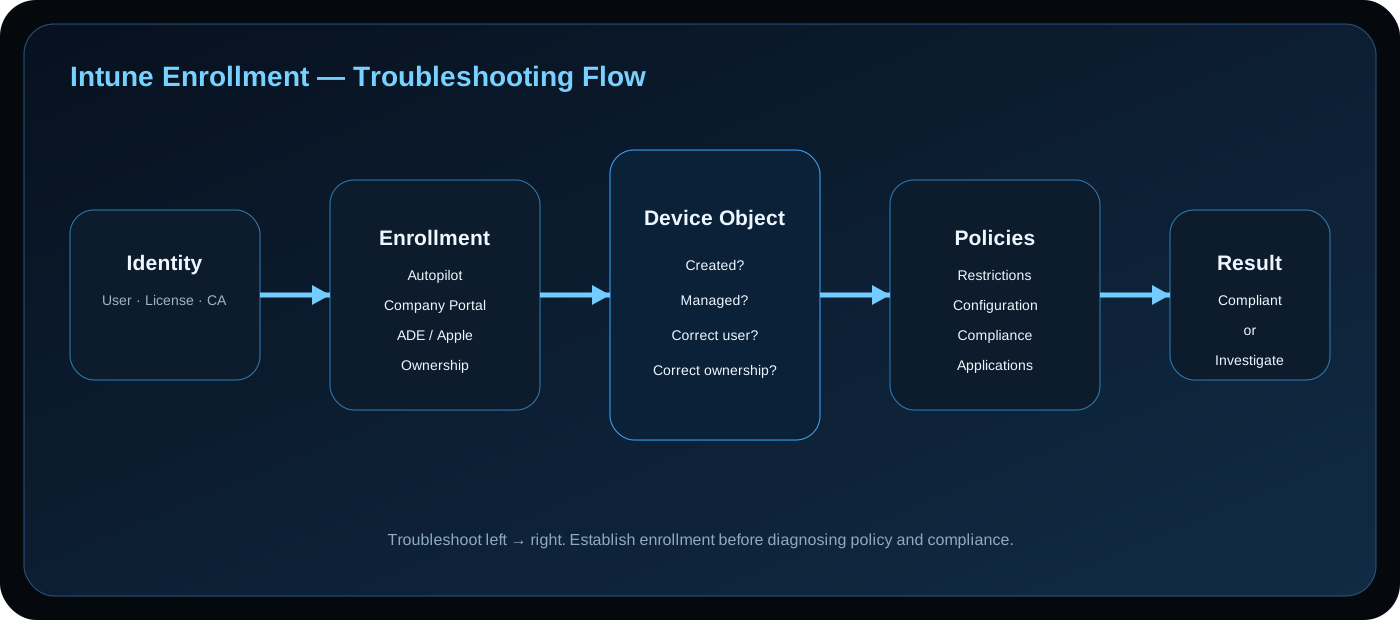
Do not treat enrollment as one event. Separate identity → enrollment method → restrictions → device object → management → policy → application → compliance, then troubleshoot the first broken stage.
1. The Enrollment Mental Model
Intune enrollment is a chain of dependent states. Microsoft Entra establishes identity and device registration or join context; Intune then establishes management and delivers configuration, applications and compliance evaluation.
The diagnostic rule is simple: do not troubleshoot a later stage until the earlier stage is proven.
2. Identify the Enrollment Method First
The enrollment method changes the expected behavior, ownership model, device-user relationship and which restrictions apply. Start by identifying the intended path instead of assuming every Windows or Apple device follows the same flow.
Windows Autopilot
User-driven, self-deploying and pre-provisioned scenarios have different user-affinity and restriction behavior.
Automatic Enrollment
Microsoft Entra join or registration can trigger MDM enrollment when automatic enrollment is configured.
Company Portal
User-driven enrollment is common for BYOD and supported platform scenarios.
Apple ADE
Automated Device Enrollment provides a corporate provisioning path with optional user affinity.
Co-management / GPO
Provisioning behavior differs from standard user-driven enrollment and can change which limits apply.
DEM / Shared
Device Enrollment Manager and shared-device scenarios have different device-limit semantics.
3. Prove Identity and Scope
Before changing Intune policy, verify the identity and assignment context. Check the user, license, group membership, enrollment permissions, Microsoft Entra device settings and relevant Conditional Access policies.
4. Check Enrollment Restrictions
Review platform, OS version, manufacturer, ownership and device-limit restrictions. Also check policy priority and assignment filters.
5. Validate the Device Object
Establish whether the expected Microsoft Entra device object exists and whether the management relationship is present. Separate registration/join from Intune enrollment; one can succeed while the other fails.
Identity → Entra registration/join → Intune enrollment → Device object → Management state6. Separate Enrollment from Policy Delivery
Once the device is managed, move to configuration profiles, compliance policies and applications. These are post-enrollment management outcomes.
7. Build an Evidence Set
Record the exact timestamp, user, device identifier, enrollment method, platform, error text, join state and relevant policy assignments before changing configuration.
8. Common Failure Modes
- Device cap reached. Check applicable Intune and Microsoft Entra limits.
- Platform blocked. Check platform restriction priority, OS/version rules and filters.
- Authentication succeeds but enrollment fails. Investigate enrollment permissions, restrictions, licensing and method.
- Device exists but is not managed. Treat join/registration and MDM enrollment as separate states.
- Enrollment succeeds but compliance fails. Move into compliance evidence.
- Policy appears missing. Check assignment scope, filters, priority and propagation.
9. Troubleshooting Sequence
1. Identify the enrollment scenario
2. Verify user + license + scope
3. Check Entra authentication / Conditional Access
4. Check enrollment restrictions and limits
5. Validate Entra device state
6. Validate Intune enrollment / management state
7. Check configuration and application delivery
8. Check compliance
9. Validate Conditional Access outcome10. Production Rollout Pattern
For enterprise deployments, use a staged rollout: pilot, observe, expand, then enforce. This reduces blast radius and preserves troubleshooting evidence.
11. Best Practices
- Identify the enrollment method first.
- Separate identity from management.
- Change one control at a time.
- Use narrow assignments.
- Keep a baseline.
- Distinguish enrollment from compliance.
12. Summary
Reliable Intune troubleshooting is a chain-of-evidence exercise. Establish the enrollment path, prove identity and scope, validate restrictions and device state, then move through management, policy delivery and compliance. Find the first broken stage instead of changing everything after it.